Sometimes you might need to uninstall the Wondershare programs. For example, it's recommended to uninstall a program before updating it to prevent a possible version conflict.
Sometimes you might need to uninstall the Wondershare programs. For example, it's recommended to uninstall a program before updating it to prevent a possible version conflict.
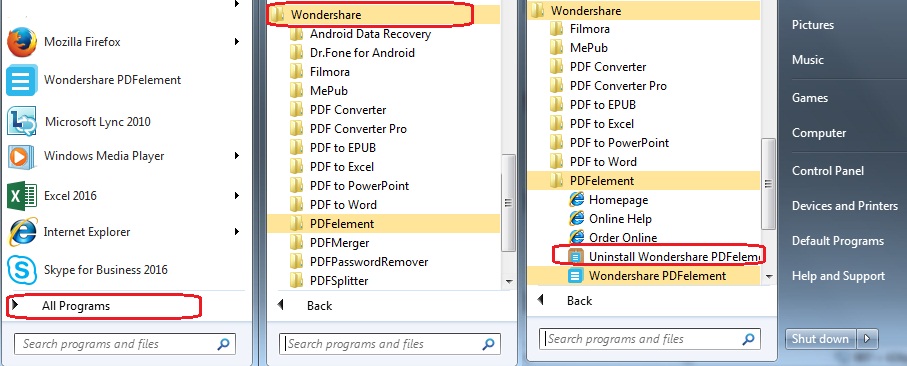
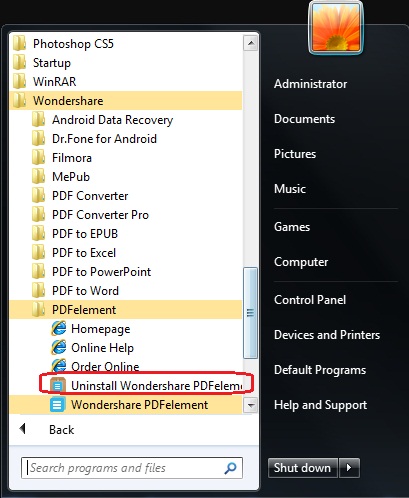
Open the Start menu in the lower left corner of your desktop. Select the All Programs menu item, then follow:
Wondershare >> Uninstall.
Note: After upgrading to Windows 8, the Uninstall tile may not be represented on the new Start screen. To access it, please right-click on any blank area of the screen, then click the All apps button in the lower right-hand corner of the screen. All the programs installed on your PC will be displayed on the Appsscreen. The Uninstall item can be found in the Wondershare section.
Just click the Wondershare Uninstaller button to uninstall the Wondershare product you installed.
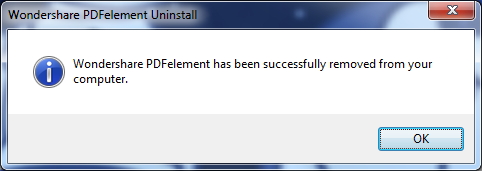
Once you get a pop-up reminder, it means the product has already been removed from your computer.
Notice: Before you uninstall, you need to exit this software.