After enabling the OCR feature in PDFelement Pro, all features will be applicable to scanned PDFs.
1Enable OCR
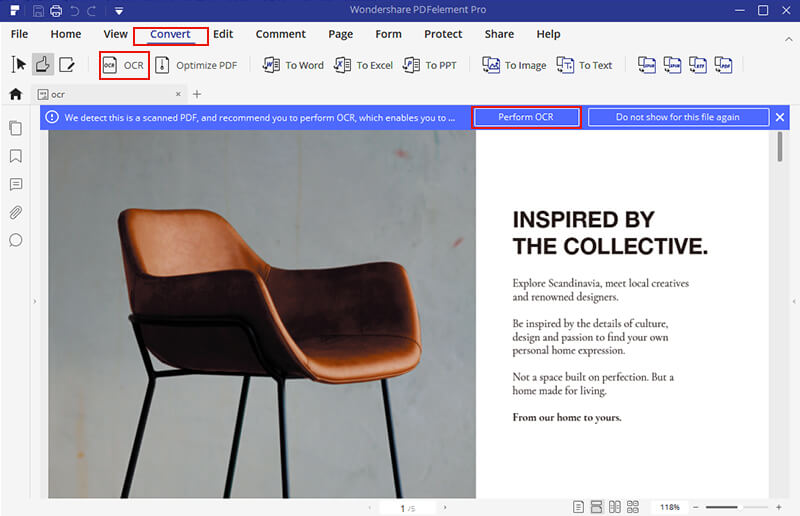
Open a scanned PDF or image-based PDF, a message will appear on the information bar. Click on the "Perform OCR", or you can go to the "Convert" tab and click the "OCR" button to perform the OCR feature.
2Download and Install OCR Feature
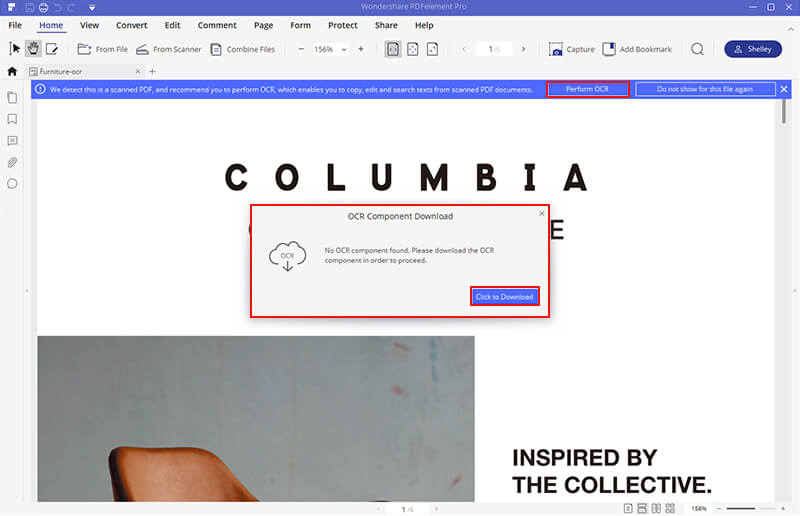
If you haven't installed the OCR component yet, a pop-up window will appear then. Press the "Click to Download" button to start the download process. After it, the installation will start automatically.
3Perform OCR Feature
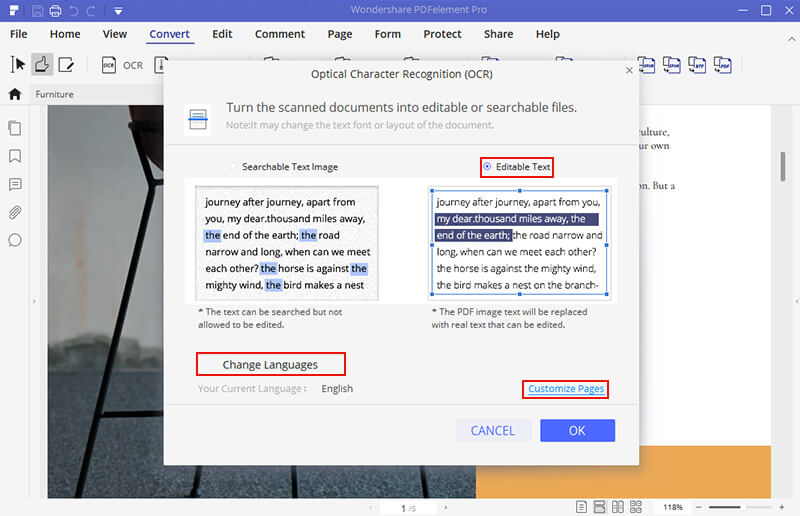
When the download and install process is done, a OCR pop-up window will appear. Here you can choose the language of the PDF file and the OCR page range.
4Choose OCR Language
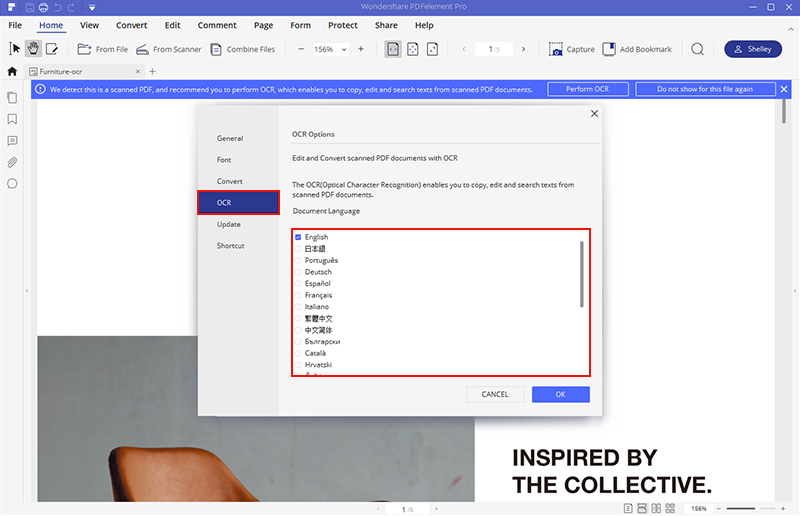
Click on the "Change Languages" button on the OCR pop-up window. Here you can choose the language of your PDF file from the supported language.
When you're done, go back to the OCR pop-up window and choose "OK". Your scanned PDF will be converted to a edited PDF file in a few seconds.