After enabling the OCR Plug-in on Wondershare PDFelement, all features in PDFelement will be applicable to scanned PDFs.
1Purchase OCR Plug-in
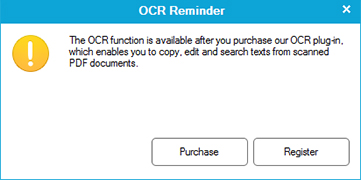
Go to the "Edit" tab in PDFelement and click the "OCR" button. Then a prompt will pup up reminding you to buy the OCR plug-in. Click "Purchase" to buy it. No trial version is available.
Once you complete the order, the OCR Plug-in download link and the registration code will be sent to you through E-mail.
2Download and Install OCR Plug-in
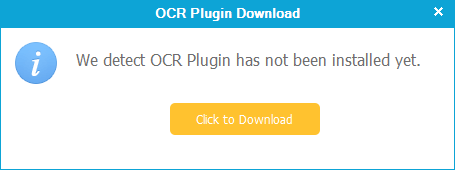
After purchasing OCR Plug-in, click the download link in your E-mail to download the installation package. When the download is finished, double-click the package to install the OCR plug-in.
3Register OCR Plug-in
After installing the OCR plug-in, a window will pop up asking you to enter the licensed email and registration code. Please enter the right info for registration.
After registration, all fancy features in Wondershare PDFelement for native PDFs will be applicable to scanned and image-based PDFs by performing OCR.
4Perform OCR
A message will appear on the information bar when you open a scanned PDF or image-based PDF, reminding you to perform OCR. By clicking on the "Perform OCR" button, you will be lead to select the language for better recognition of scanned PDFs.
5Choose OCR language
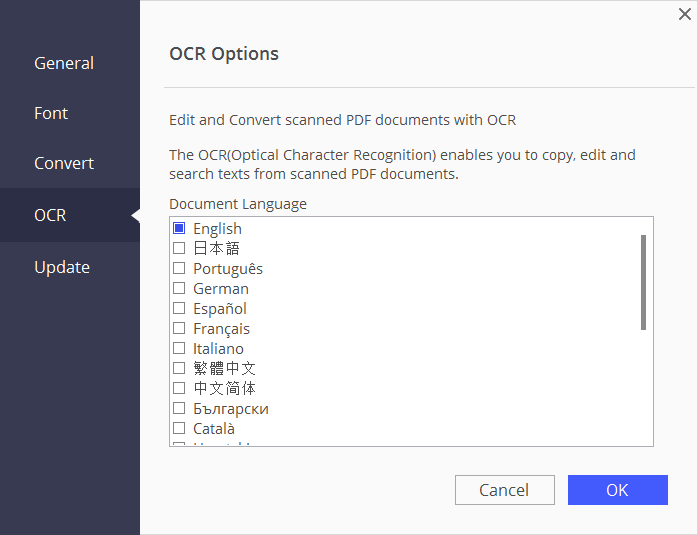
In order to select OCR language, you need to click the "File" menu and then you can see multiple choices. Click the "Options" button, a window will pup up. Click the "OCR" button and choose the language you need. Finally, click "OK" to set the OCR language.